Pages

Tuesday, August 21, 2012

Working with the overlay in Drupal 7.x


The administrative overlay makes it easier to administer a Drupal site by displaying administrative pages as a layer over the current page (using JavaScript), rather than replacing the page in your browser window. Once an overlay is active, you can use the close link on the overlay to return to the page you were viewing before you clicked the link. In a "Standard" install, the Overlay module is enabled by default.

Uses

Example

Administrative interface without the overlay:
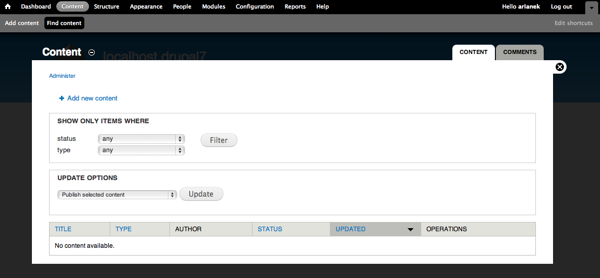
Administrative interface with the overlay:

Accessing the overlay

When enabled, the overlay will appear when you click on administrative links. If you manually enter a URL in your browser, overlay will not be used. To reset so that overlay is used again, leave the admin section of your site, then return to the page on which you want to use overlay.

Roles and permissions

Users must have "access overlay" permission in order to see administrative pages in the overlay.

Disabling

  1. On the admin toolbar, click Modules.
  2. In the Core section, disable the Overlay module.
  3. Click Save Configuration.

Working with the shortcut bar in Drupal 7.x


The Shortcut module provides a toolbar on the top of the page to which you can add links. This is useful for creating links to commonly-used pages within your site. You can organize these links in multiple sets of shortcuts.

Uses

Managing shortcuts

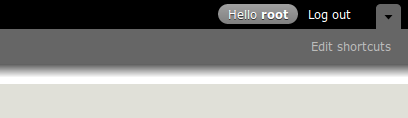
By default, two links are available in your shortcut toolbar: "Add content" and "Find content". To add and edit shortcuts click the "Edit shortcuts" link in the toolbar.
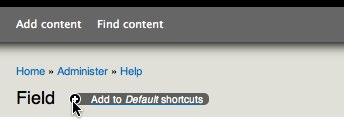
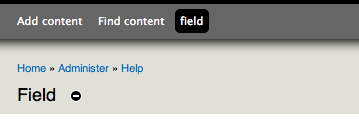
The core Seven administration theme displays a + sign next to administrative page titles that allows you to create a shortcut to that page. (With the overlay module active, the page title appears above the overlay, not under the breadcrumbs as you see here.) If the page is already part of your shortcut set, the link will be a - sign, to remove the shortcut.
Once you've added it, you'll see the new link in your shortcut bar:
To manage shortcuts, you must have the Administer shortcuts permission.

Shortcut set limits

By default, you can only have 7 shortcuts displayed (others can be in the list of shortcuts, but disabled). This is governed by the Drupal variable 'shortcut_max_slots'; like any other Drupal variable, you can update it by using the drush command-line utility, or in the $conf section of your settings.php file. (Note: you may need to clear the Drupal cache after using either method to update this setting.) See also this issue on the set size limit.

Managing shortcut sets

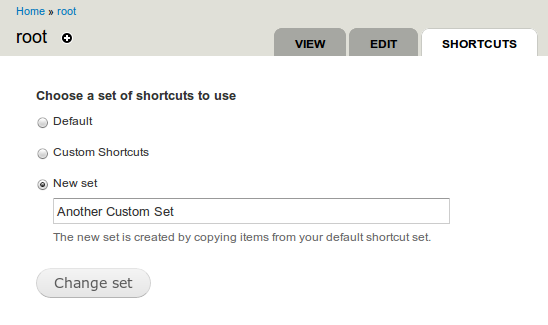
You can organize shortcuts in sets. To add or edit shortcut sets, navigate to your account page (http://www.example.com/user) and click the "Shortcuts" tab. Only one shortcut set can be displayed at one time.

Displaying and hiding shortcuts

The core Toolbar module displays the shortcuts near the top of the page, along with an Edit shortcuts link. The shortcuts can be quickly hidden by clicking the arrow sign in the toolbar.
You can display the shortcuts somewhere else in your site by enabling the Shortcuts block on the Blocks administration page (Administer > Structure > Blocks).

Disabling Shortcut module

You can also disable the shortcut feature completely by disabling the module on the modules administration page (Administer > Modules).

Getting started with Drupal 7 administration


This section is an introduction to site administration for new Drupal 7 users. It covers the use of administrator account and offers suggestions on where to start.

Understanding the administrator account

At the end of the installation process, the person who performed the installation is automatically logged into the site with the administrator account. You may see the administrator account referred to as User 1. This administrative account is automatically given all privileges for managing content and administering the site. The best practice is to only give a developer or the highest level of site admin access to this account. You can always grant users permissions by assigning them to certain roles, so there is no reason to share this account.

Where to start

Here are some starting points for what you can do following installation:
  1. Check your site's status: Navigate to the Status report page by going to Reports > Status report through the administration toolbar at the top of the page to get an overview of your site's current status. Items with a red background are issues that need immediate attention (see Reports for more information). An example of this would be a required security update for Drupal core or an installed module, or an unprotected settings.php file (see What permissions does Drupal need? for more information). The Status report page may also indicate that "Cron has not run," and give you an option for running it manually. Cron.php is a script that needs to be run regularly for your site to continue functioning properly. See Configuring cron jobs for information on how to have your system automatically run the cron script.
  2. Configure your site information: You can change basic settings, such as the site name or the default front-page path, by navigating to the Site Information page (Administer > Configuration > System: Site information or http://example.com/admin/config/system/site-information).
  3. User management: To add new users or manage existing users, go to the People page (Administer > People or http://example.com/admin/people. You can manage user roles and permissions by clicking on the "Permissions" tab on this page. To change the process by which users apply for accounts, visit the "People and Permissions" page (Administer > Configuration > People: Account settings or http://example.com/admin/config/people/accounts). Please see the Users, Roles and Permissions page for more information on this topic.
  4. Add additional functionality: Modules can be used to add extra features to Drupal. The standard Drupal installation comes with a number of modules that are ready to be enabled. In addition, you can download community-contributed modules to add even more features. Navigate to the Modules page (Administer > Modules or http://example.com/admin/modules) to administer the modules that were included. Additional modules can be found in the Modules section of Drupal.org. Please see theInstalling contributed modules (Drupal 7) page for more information on this topic.
  5. Customizing the site appearance: You can change the site's appearance by installing new themes or editing theme settings by navigating to the Appearance administration page (Administer > Appearance or http://example.com/admin/appearance). Visit Adding Modules and Themes in the Drupal Cookbook for more information on how to add themes, or take a look at the Theming Guide if you are interested in creating your own custom theme.
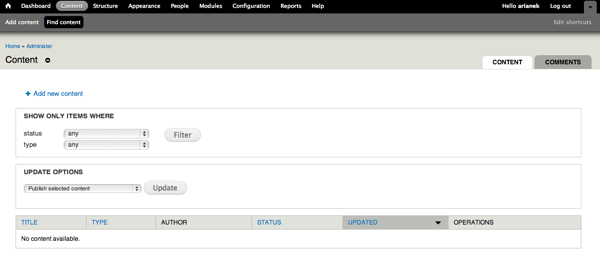
  6. Posting content: By default with a regular installation, Drupal 7 has two content types enabled. "Articles" are generally used for posting frequently updated content (for example, to the front page). The "Basic page" content type is generally used for creating the equivalent of static pages (more permanent site pages). Navigate to the "Content" administration page (Administer > Content or http://example.com/admin/content), then click the "Add new content" link to add content to the site. You can also define your own content types by clicking the "Add content type" link at the top of the Content types administration page (Administer > Structure > Content types or http://example.com/admin/structure/types). Visit the Drupal Cookbook page on Creating content for more details.

Monday, August 20, 2012

Showcasing 10 Best Drupal Powered Websites


Drupal has proven itself as the most robust platform currently available in the content management system market. This powerful and flexible software allows anyone to build fairly complex dynamic website applications. Many web masters therefore often think that just because it is a highly structured framework, Drupal does not allow for highly customized or attractively looking designs. That’s a mistaken opinion, as you will see from the list of fantastically designed Drupal websites in the showcase below.

Equipped with a powerful blend of features, Drupal currently supports a variety of extremely attractive websites ranging from personal blogs to larger corporate and community-driven projects. With this platform it is possible to do virtually any kind of website one may want. Take a look at 50 awesome examples we’ve found to give you a proof that Drupal can be beautiful.

Bodybike.dk

Showcasing 55 Best Drupal Powered Websites

Antwerpenstudentenstad.be


Crosbystillsnash.com

Showcasing 55 Best Drupal Powered Websites


Operalyra.ca


Michaeljackson.com

Showcasing 55 Best Drupal Powered Websites
 

Mtv.co.uk


Asi.it


Shc.stanford.edu

Showcasing 55 Best Drupal Powered Websites 

Christinaaguilera.com


Johnnycashonline.com

Showcasing 55 Best Drupal Powered Websites

 ---------------------------------------------------------------------------------------------------------------------------------------------------------------------