Pages

Tuesday, August 21, 2012

More Drupal 7 Tips and Tricks


Let's face it climbing the Drupal learning is no walk in the park; there is always something to learn, keeping up with the latest practices, code changes & modules in itself is a full time job. Well with the Drupal 7 tips and tricks series I hope to turn some of you into part-time researchers and full time "Drupalers".

Tip #1 - Themeing Product pages in Drupal Commerce

Fresh on the Drupal scene Drupal Commerce can be seen as an alternative to Ubercart. The focus behind Drupal commerce is a more seamless integration to Drupal 7 utilizing core features such as fields and entities and makes views integration less of a pain.
 
If you are familar with the print render ($content)make sure you add the product reference field. For example: print render($content['product:commerce_price']); for complete reference as to what your product--node.tpl.php should look like click here.

Tip #2 - Adding Author fields to Views 3

Adding the author field to a node may not be so easy to figure out right of the bat however, following this 2 step process should have the author of the content available in your fields section of your view.
1) Create a relationship in your view with "Content: Author"
2) After the relationship is set your should see an additional field called "User:Name"
That's it, author fields is now available at your disposal.
 

Tip #3 - Drush Cheat Sheet

What is drush?
Drush is a command line shell and scripting interface for Drupal, a veritable Swiss Army knife designed to make life easier for those of us who spend some of our working hours hacking away at the command prompt.

Tip #4 - Adding Related Content to a view in Drupal 7

1.    Create view (block)
2.    Add fields (title, a small image, date, whatever you like). Or teasers, what works as well.
3.    "Arguments" is from now on called "Contextual filters", so go there.
4.    Add the filter: "Content: Has taxonomy term ID"
5.    Configuration on this filter: -> When the filter value is NOT in the URL: -> Provide default value -> Type: Taxonomy Term ID from URL -> under that, check the box "Load default filter from node page, that's good for related taxonomy blocks." -> now check the boxes of the taxonomies you want involved here
6.    Now you need to add the second filter in order to exclude the current node from the list. Click [+] button of the contextual filters section.
7.    Select Content: Nid
8.    Set the 'when argument is not present' to 'Provide default argument'
9.    Set the 'Default argument type' to 'Content ID from URL'
10.   Go to "MORE" , and check the "Exclude" box.
11.    Add a block to your view and embed the block on your node pages
12.    Save your view
 

Tip #5 - Moving Drupal 7 site to a new server - Drupal Staging

Staging has been an issue for Drupal for quite some time now. However many people within the Drupal community are looking to change that with the future release of Drupal 8. Before we begin make sure your server meets the necessary requirements to run Drupal 7 to avoid php related syntax errors.
 
Export the database
The first thing you want to do is export the database. Using phpMyAdmin export the entire database to a file, the default configurations provided should work fine; you want to make sure to export the entire database. If you go within a database and choose the export method you would have to create the database on your target server, enter within that database, and then choose the import method.
By exporting the entire database you do not have to create a new one on your production server the exported file saved will do so automatically. Note: tested using .sql file
 
Copy the files
Should be straight forward here. Simply copy all files from your development server over to your target server.
 
Change your settings.php
The most important part of this process! Make sure you change the settings in your settings.php to reflect your target server or else you'll experience a lot of hair pulling moments. Do not neglect the $base_url this should be the path to your domain name.
Also you want to make sure .htaccess is included and RewriteBase is commented out.
 

Tip #6 - When designing Drupal themes make sure you take into consideration these elements:


  • Header
  • Footer
  • H1 - H5
  • Body
  • Link
  • Unordered List
  • Blockquote
  • Code
  • Admin Tabs (secondary tabs)
  • Collapsible Field Sets
  • Block Headers
  • Block Typography
  • More button
  • Submit Button or general button style
  • Input Field
  • Tags
  • Pagination
  • Basic Node Style
  • Table Style
  • Error Message
  • Status Message
  • Warning Message
  • Help Message
  • Default Profile Layout
  • Blog title and Byline
  • Breadcrumbs

Drupal Beats WordPress for Single Blog: DIYthemes Thesis Twenty Eleven


Over the past few months, I have used three themes for this blog. Two used WordPress and one Drupal. Of the three, I prefer the current theme which is a child theme of Zen running in Drupal 7.14. The other two were both WordPress 3.4 themes. A child theme of the default Twenty Eleven and a Responsive skin using DIYthemes Thesis 1.8.4. Why do I prefer the Drupal theme for a single user blog site? In contrast to what many others have written?
To make a comparison between them, I need a list of the required or preferred characteristics of a website blog theme.
  1. Security
  2. Responsive
  3. Child Theme
  4. Stability and Reliability
  5. Composition
  6. SEO
  7. Screen Display
  8. Cache and Page Load Speed
  9. Subscribers

1. Security

Nothing is hacker proof. So backup is essential. That said, Drupal is probably more resilient than WordPress.
I do not intend to allow user login on my site. If I did, the controls on access that Drupal has knock the socks of anything WordPress can do.
Both WordPress and Drupal have plugins and modules (respectively) that block users who try to hack in as the administrator on the login in screen. There is little difference between them.
The same is true for preventing, or at least controlling, spam in comments. The Drupal Mollum module may be slightly better, but not by much.

2. Responsive

There is no doubt that the move towards viewing websites on tablets and smart phones will continue and gather momentum. A theme that is not responsive has past its use by date. All three satisfied this. But, the latest version of Thesis, 1.8.5 is not a responsive theme. And the previous version that is has an error that prevents Google from accurately capturing the RSS feed in some situations.
The load time on smart phones is important. Which basically means that the page size must not be too large. That is more up to me than it is to the theme. So it does not distinguish between the themes.

3. Child Theme

I am going to want to modify any theme I use with either CSS or php code. Obviously it is essential that a new version of the theme or the background software must not break my website. Which is why a child theme is essential. Twenty Eleven and Zen allow child themes.
I thought DIYthemes Thesis responsive skin was a child theme when it first came out. But in this I was misled by DIYthemes. It is actually a skin not a child theme and it only works with Thesis 1.84.

4. Stability and Reliability

The theme must be stable and must work reliably. All three meet this.
It must be future proof, at least if that is possible. Twenty Eleven is obviously future proof as it is the default WordPress theme.
The situation with Thesis is unclear. As I have said the the responsive skin just does not work on their latest update. Who knows if it will work on Thesis 2.0 which is due out in August sometime.
Personally I doubt it will. And there currently is no information available about how Thesis 2.0 will be responsive. So right now Thesis fails.
Zen will definitely work with any of the minor upgrades to Drupal. It will probably work in Drupal 8 as well, although that is quite a while off. Drupal being what it is, I do not anticipate changing to Drupal 8 for a couple of years at least.

5. Composition

Spell check as I write is a must for me. WordPress comes with a good editor for composition out of the box. The Drupal module CKEditor is possibly better.
I need to be able to insert images although I actually do so sparingly. Twenty Eleven is the best for this. Thesis essentially uses the WordPress sytem, but has to be modified to do so (at least in the version I was using). Drupal 7 is satisfactory but does not allow image captions. A negative point for Drupal.
All three allow a preview of what you have written. Drupal 7 does this on the same browser page whereas the other use a separate page. A small difference but it is more convenient.

6. SEO

A lot of rubbish has been written about this. Obviously you must be able to send the article automatically to search engines. All three can be set up this way. I want to be able to use Google Analytics, and all three have this capacity as well.
Nowadays, the words used in the title of the article are what determines whether people will search for it or find it. The title either contains keywords that people are using or it does not. And if it does not, or if it contains very common keywords, people just wont find the article. Additional things, such as WordPress tags and the SEO type of Drupal tag that you can add if you want to, probably count for nothing much.
I do want to be able to change the title tag so that the brief abbreviation that appears on a Google search can be modified, although in practice I do not use it all that much. I can however do it in all three.

7. Screen Display

All three enable the use of different fonts and background colors. Thesis is probably the easiest to use for this.
I want to be able to adapt what appears on display depending on what is being read – the type of article for example. It is here that Zen and Drupal come into their own. The combination of Views, Context and Blocks allows limitless combinations of displays. Different sidebars for different topic groups (using Drupal tags for example) is quite simple in Drupal.
DIYthemes claim that their Thesis hooks are innovative. And they are right. Twenty Eleven comes nowhere near Thesis in this area. But Thesis does not allow as much flexibility as Drupal does.
For those not used to Drupal, Views is a module that allows the creation of lists. Just about anything that is in the SQL data base can be converted into a sorted list.
Context is a module that allows simple rules to be applied to the Views list. Well and to other aspects of the SQL data base as well. If one or a number of rules apply, the output will occur in a selected part of the screen display.
Blocks are segments of the screen display. Different themes in Drupal have a different number of Block positions available up front. In a way this is similar to Thesis hooks. Twenty Eleven does not provide this function other than the header, the sidebar and the footer. Although you can modify it a bit.
Drupal also allows the grouping of sets of articles into books. This additional type of display does not have an exact equivalent in WordPress
Finally Drupal has panels which allows for a whole variety of display types. I do not use it at present, but it is available.

8. Cache and Page Load Speed

Drupal has caching out of the box but there are excellent WordPress plugins that provide good caching. All three are very fast providing you do not load up the page with images.
I regularly check page loading speed using Pingdom Tools.

9. Subscribers

This is one area in which Drupal 7 largely fails. There is an error which is not likely to be fixed soon which causes notification emails to fail. So building a subscriber list with for example the WordPress plugins Subscribe2 currently has no equivalent in Drupal. You can use MailChimp for things like newsletter, but that is normally not required for a blog.
Instead with Drupal you need to put effort into encouraging readers to subscribe to the RSS feed.
Finally, I have not commented at all on Drupal's so called steep learning curve. In my view there is just as much to learn to adapt WordPress as there is in Drupal. The documentation for both is pretty good.

Adding pinterest pinit button in drupal 7 nodes


There are a few modules that will accomplish this but sometimes I want to have more control on placement in my node template files.
The Pinterest Pin It button requires three parameters:
  • URL of the page to pin (required, start with http)
  • URL of the image to pin (required, start with http)
  • Description of the page to be pinned
We can get these three parameters in the node template files with the following PHP statements.
  • print $node_url;
  • print image_style_url('image_style',$node->field_image_name['und'][0]['uri']);
  • print $title;
  <a href="http://pinterest.com/pin/create/button/?url=<?php print $node_url;?>&media=<?php printimage_style_url('image_style',$node->field_image_name['und'][0]['uri']); ?>&description=<?php print $title?>" class="pin-it-button" count-layout="horizontal">Pin It</a><script type="text/javascript" src="http://assets.pinterest.com/js/pinit.js"></script>
If you need more than one Pinterest Pin It button on a page you can simply put the script statement at the bottom of the page just before the closing body tag.

Adding content on Drupal 7


In this example you will learn how to add content to a Drupal 7 site.
Before we begin: Make sure you are logged in as a user who has the right to create content – ask your system administrator if you are not sure; otherwise, some of the fields you need to select will not be visible.
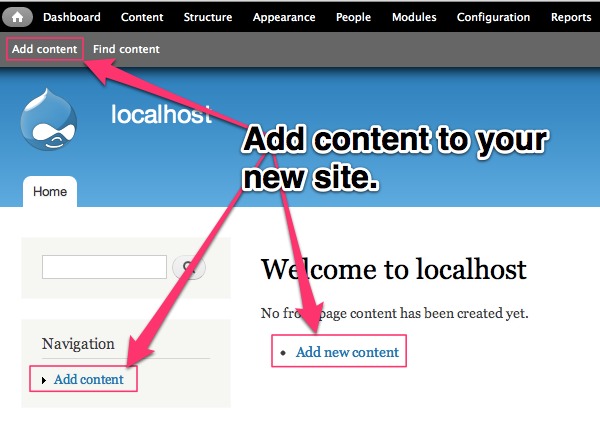
  1. Select Add content from the front page (either in the Navigation menu or one of the menus un the header.
    Add content
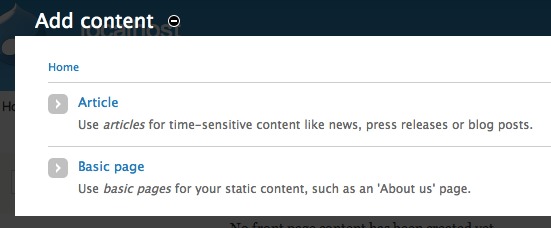
  2. This brings up a screen asking what type of content you wish to add.
    Select Article
  3. Select Article. The only major difference between Basic Page and Article is that you have the ability to upload an image when creating an Article; a Basic Page is for a static page.
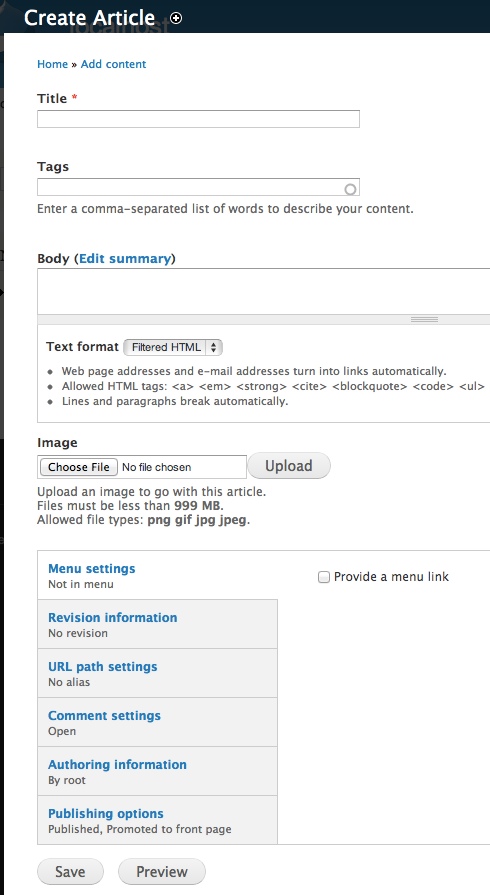
  4. A form will appear allowing you to enter information for your Article.
    Add Content Form
  5. Enter a Title for the page in the Title text box: for example, Test Article.
  6. In the Body area enter some text. If you have an already written block of text for your site, you can just cut and paste it into this area.
  7. Text can include limited (recommended) or full HTML markup. Generally, you are better off from a security standpoint to use the default (Filtered HTML).
  8. Click on the Publishing options link and check what options are selected there.
  9. Checking Published will make sure that the content gets published to the site as soon as it is Saved, while Promoted to front page will make sure that this content gets published on your site’s homepage. For content for your homepage, check both of these.
  10. Click the Save button.
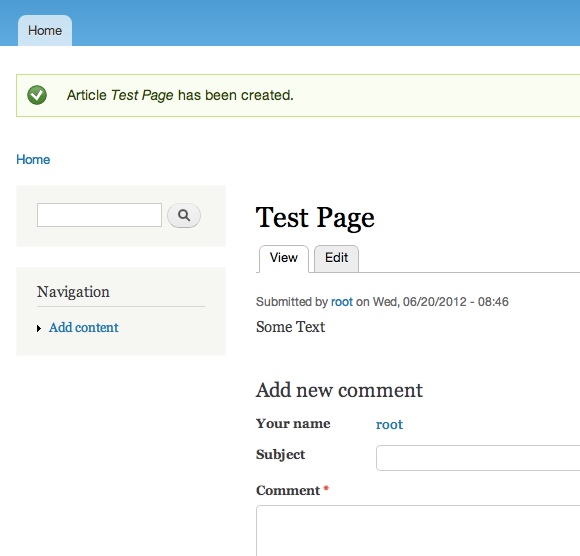
  11. You should now see your post.
    Final Test Article