Pages

Wednesday, February 17, 2016

Arbitrary "OR" SQL Queries

I was working on a Drupal migration project today using the Migrate module where I needed to import only select user roles from the source (Drupal 6) database.
The Migrate module allows for a custom query to select only the user roles that need to be imported. In my case, the two roles I wanted to import had role IDs of 4 and 6. So, how do I write a query using the Drupal Database API to do this? Turns out there's a pretty elegant answer. Rather than writing something like:
SELECT * FROM role r WHERE rid=4 OR rid=6;
The proper way of writing the select query is:
$query = parent::query();
$ored = db_or();
$ored
->condition('rid', 4)
->condition('rid', 6);
$query->condition($ored);

Note the elegant "db_or()" function that returns a DatabaseCondition object. Add the two conditions to this object, and they're automagically "or"ed.

Drush Lock: Freeze the version of a Module during 'drush up'

Every so often I will find myself needing to update lots of Drupal modules but not one in particular. Perhaps I have patched the module, or perhaps there is a new version of the theme that I know will break my site layout.
Drush can save you from this dilemma, as of version 4.x - yes, it's true!
Just use:
drush up --lock=omega
Assuming Omega is the project that needs to keep the same version number. Omega will not be updated until you reverse the lock.
drush up --unlock=omega
You can also just:
drush up omega
If you want to.

Where did the catpath and termpath tokens go in pathauto?

In the old days of web design, we had to put all of our files in folders, so having a path like example.com/category/sweaters/cashmere/winter-special.html was really common. You could also remove any part of the path and be sure you would get an index page, such as example.com/category/sweaters/index.html.
In a front-controller CMS like Drupal, all the paths are arbitrary, so a hierarchical folder structure has to be faked with URL Aliases. Luckily the community maintains two modules to round out this functionality in Token and Pathauto, along with the excellent Entity API module and the Entity Tokens that comes bundled with it. However, Tokens were completely (and necessarily) rewritten from Drupal 6 to Drupal 7, and some of the cool things you could do with pathauto to emulate old-school folder structures became less transparent.
After a few minutes of searching the issue queue, lo and behold, a replacement for Drupal 6's "catpath" token:
category/[term:parent:url:path]/[term:name]
If your taxonomy is properly arranged in a hierarchy, this acts as a recursive loop to generate the terms that should be properly nested. That means that example.com/sweaters/cashmere/ should show you all the nodes tagged with cashmere, and likewise for example.com/sweaters.
OK, but what about the nodes? No problem there either:
category/[node:category:url:path]/[node:title]
Again, this creates a recursive loop where the path of the node depends on the path of the term, and that depends on its parent terms. (if you'd like to add .html to the end, that is fine too).
The pattern is different depending on the name of your vocabulary. In a site upgraded from Drupal 6, the word "category" will be replaced by a vocabulary ID.
category/[node:taxonomy-vocabulary-2:url:path]/[node:title]
if your field has multiple values you may need to address the term with a delta:
category/[node:taxonomy-vocabulary-2:0:url:path]/[node:title]
Last but not least, if you want absolute control over which term is used you may also want to check out Dave Ried's Taxonomy Entity Index module.
BTW I never used to like putting "category" in front of my URL aliases, but there is a good round up of some security holes you may open by not putting some static text in front of pathauto patterns: Pathauto Patterns that can be Dangerous

Drupal Text Formats and Content for Test Nodes

When building a Drupal-based website or theme, you will invariably create some test nodes of a content type that has at least one text area field. You should then add some example text, to see how those fields will look on the website. But beyond those nodes focused on styling, you may find it necessary or advisable to create a large number of additional test nodes of that content type. When you begin this process, you may wonder whether it would be best to add placeholder text (such as the venerable "Lorem ipsum") or leave those fields empty. Also, are there any ramifications of choosing one text format or another?
If a text area contains no content, then no text format is associated with that particular node's text area, and changes to the text format setting (made through the user interface) are not retained. However, if placeholder text is added to the field, then users who do not have permission for the chosen text format, will naturally not be able to edit the text. Consequently, you or someone else would be forced to change the text formats on all of the problematic nodes — manually or with database commands. On the other hand, if you leave those text areas empty, then those users can add whatever text they want, and specify any of the text formats for which they have permissions.

Hardcoding the Temporary Directory Path

When working on a local copy of a site that also has a production, stage, and/or development environment on another server, it can be handy to hard-code the "Temporary directory" file path as found on admin/config/media/file-system
The reason is so that when you restore a copy of the database from another server to your local machine, you don't have to redo the temporary directory setting. For example, on most sites we build, we set up a shared development environment on WebEnabled (shameless plug) where multiple developers are often configuring different parts of the site. When I want to work locally, I like to have an up-to-date copy of the database. I use the Backup and Migrate module or Drush to copy the database from the shared development environment to my local machine.
To hard-code the temporary directory path of your local site, simply add the following line to the bottom of your local settings.php file:
$conf['file_temporary_path'] = '/tmp';
Where "/tmp" is the your local temporary directory path.

Get notified of new comments with Rules

I know there are modules to handle this, but Rules can do it all:
If you visit admin > config > workflow > rules on your site, start a new Rule like so:
Name: "Notify of new comment"
React on Event: After saving a new comment
I normally tag the rule with the name of the site, like "drupaleasy".
Next add a new Condition:
Select the condition to add: User > User has role(s)
User > Data selector: "comment:author"
Roles > Value: administrator
check the Negate box
This looks at the role of the person who just left the new comment. If he or she is an administrator, this rule wil not fire. Chances are, if an admin left a comment, you don't want to know about it. On most sites I don't add this condition, but on a single-user site like a blog, this rule will make a lot of sense.
Next add an Action - this is what you want to happen when a new comment is created (that was not added by the administrator):
System: Send mail
To > Value: "[site:mail]"
Subject > Value: "New comment on [comment:node]"
Message > Value:
[site:url]admin/content/comment/approval
[comment:url]
[comment:title] - [comment:node]
at [comment:created] by [comment:author]
[comment:mail] - [comment:homepage]
[comment:body]
[comment:edit-url]
From > Value: "[comment:mail]"
On my sites, Anonymous comments have to pass approval - we just get too much spam otherwise. Luckily, now that we have this rule in place, we can think about lifting the approval gate so comments appear instantaneously while still helping us cut down on spam.
Here is an exported version of the rule:
{ "rules_notify_of_new_comments" : {
    "LABEL" : "Notify of new Comments",
    "PLUGIN" : "reaction rule",
    "TAGS" : [ "drupaleasy" ],
    "REQUIRES" : [ "rules", "comment" ],
    "ON" : [ "comment_insert" ],
    "IF" : [
      { "NOT user_has_role" : {
          "account" : [ "comment:author" ],
          "roles" : { "value" : { "3" : "3" } }
        }
      }
    ],
    "DO" : [
      { "mail" : {
          "to" : "[site:mail]",
          "subject" : "New comment on [comment:node:title]",
          "message" : "[site:url]admin\/content\/comment\/approval\r\n[comment:url]\r\n\r\n[comment:title]\t - [comment:node]\r\nat [comment:created] by [comment:author]\r\n[comment:mail] - [comment:homepage]\r\n\r\n[comment:body]\r\n\r\n[comment:edit-url]",
          "from" : "[comment:mail]"
        }
      }
    ]
  }
}

Enabling Drupal 7 'www' Redirection on a Local Host

Drupal 7's HTTP access file, .htaccess, contains some URL rewriting code for redirecting all site visitors to the domain name starting with "www.", in case they try to go to the domain name without the prefix. For instance, you might want all visitors to go to www.example.com, and never example.com, for SEO purposes.
This is achieved by uncommenting the code on lines 81-82:

RewriteCond %{HTTP_HOST} !^www\. [NC]
RewriteRule ^ http://www.%{HTTP_HOST}%{REQUEST_URI} [L,R=301]

This works fine when used on a remote server, but not on a local server that is not set up to handle the prefix. For instance, if you have a local installation of Drupal at http://localhost/my_site/, then the rewrite code will change that into an invalid URL: http://www.localhost/my_site/
This problem can be fixed by adding the following line above the RewriteRule:

RewriteCond %{HTTP_HOST} !^localhost$ [NC]

Or, more simply, the existing RewriteCond line can be modified:

RewriteCond %{HTTP_HOST} !^(www\.|localhost$) [NC]

Filter a view based on empty Imagefield

Turns out there is no filter that asks wether or not an imagefield (or filefield) has a value. I came across this tip on Drupal.org. The recommendation was to use a relationship, and then choose "Require this relationship" to act as a filter. Pretty cool.
So assuming your imagefield is just called "Image", here is the walkthrough:
  1. Add a new view of type "node"
  2. Add one or more fields (I assume you want to include the image field) in the normal way
  3. Click the button next to Relationships to open the dialog for adding relationships
  4. From the "Content" group, choose your Image field (which will be followed by "fid")
  5. Make sure you click the "Require this relationship" box when adding the relationship
That should be it!
I don't know if this changes for Views 3.x and Drupal 7, but this is the only way to do this in Drupal 6 and Views 2.x. You're welcome.

I can't log in to my Drupal site - every page says "access denied"

Once upon a time I updated a Drupal site and was unable to log in after the update was complete. I tried messing with the $cookie_domain and $base_url to no avail. When I used the Web Inspector or Firebug to view my Cookies I noticed I was not getting a familiar PHP Session Cookie.
Here's how to check:
  1. Chrome or Safari: right click and Inspect Element, then switch to the "Resources" tab, click "Cookies" then the domain name of your site, like "drupaleasy.com".
  2. Firebug: Open Firebug, click the "Cookies" tab (you may have to enable it first) 
  3. Firefox: Open the "Developer Toolbar" (shift+F2 or Tools > Web Developer > Developer Toolbar) and a small black bar appears at the bottom of your window. Type:
    cookie list
  4. All of the above: Open the Javascript Console and type: document.cookie
Make sure you can see a cookie that starts with SESS. Try to log in and look again.
If you don't see one, sessions are likely messed up. Try truncating your session table in your site's database.
From the sql command line:
truncate table sessions;
Everyone who is currently logged in will be logged out, but in my case I was now able to log in. Hope that helps.
If you use a graphical tool like phpMyAdmin, you can truncate a table by clicking on the box next to the "sessions" table and choosing the "Empty" option.

Drupal 7 Check for Available Updates Solution

On a Drupal 7 website's "Available updates" page (admin/reports/updates/update), if and when you request that Drupal manually check for updates (of modules and themes), it can sometimes fail to get available update data for most or all of the projects, regardless of how many times you retry the process. The problem is caused by errant records in the cache_update table in the Drupal database, which apparently are not removed by the update request. In theory, this should be fixable by requesting that the system clear all of the caches (admin/config/development/performance), but even that operation can fail to empty the table. In this case, you must empty — "truncate", in database parlance, not "drop" — that table yourself and then manually check for update data again.

Limiting Drupal Registrations to Profiles

If you are using the Profile 2 module to set up multiple profiles in a Drupal website, and you want each visitor to register any new account using only one of those profiles, then you should redirect the Drupal path "user/register" — using a URL alias or an HTTP redirect — to a new page that explains the different profiles and has links to the unique registration pages for each one. (For any profile P, the Drupal path to the profile-specific registration page would be "/P/register".) Otherwise, a visitor may arrive at the generic registration page (intentionally or otherwise) and create a new account independent of those profiles.

Drush on Mac OS X Troubles? Could be a Case Issue...

I recently discovered the solution to a long-standing drush issue I have been experiencing on Mac OS X. The symptoms of the problem included several mysterious fatal errors that would crop up from time-to-time as well as the fact that I've had to use the --uri=mysite.dev parameter for every local site on my computer.
I finally tracked down the issue to case-sensitivity. On my Mac, I keep all my local sites in the /Users/michael/Sites directory - this is the default directory that comes with OS X, and can be used by the Mac's built-in version of Apache. I use both MAMP Pro (for client sites) and Acquia Dev Desktop (for teaching), and every site I have lives in this directory.
Up until yesterday, whenever I would fire up my Terminal app, I would (by default) be deposited in /Users/michael, so my first order of business would be to do a cd sites/[directory of the site I wanted to work with]. While that worked fine as far as my Mac was concerned, when I then went to run a drush command, I would either get a fatal error (cannot redeclare a function) or drush wouldn't know which site it was in, and I'd be forced to either use a drush alias or the --uri=mysite.dev parameter. It turns out that because drush is (and most *nix-y tools are) case sensitive, it wasn't actually finding my site, hence the need for the --uri=mysite.dev parameter.
The solution is dead simple. When I fire up my Terminal app, I now use cd Sites, with a capital "S" (actually, I just set a new default directory for it). So far (less than 24 hours in), this has solved every single drush issue I had been having.

Re-ordering Views Attachment Displays

If you have a Drupal 7 view with more than one attachment display, it is not super-obvious how you can reorder the displays. When you create a new attachment display, you can choose the display to attach the attachment display to as well as the position ("before", "after", or "both").
But what if you need to attach two attachment displays "before" another display - how can you control the order of the two attachment displays.
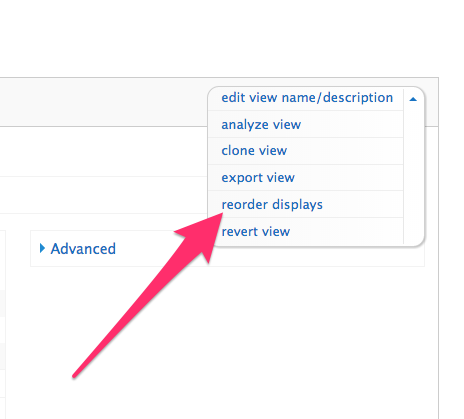
it's actually quite easy once you know how - in the view's "edit view name/description", there is a "reorder displays" option. Click it and behold!
Views screenshot

Debugging with PhpStorm (Including Drush)

I recently made the switch from another (several) code editors to PhpStorm based on the recommendations of several members of the Drupal community - not to mention all the postive things I've heard about it on IRC and various other places.
My main motivation for making the switch was the ability to have a integrated debugger - both when running Drupal in a web browser and via Drush. While there are plenty of resources online demonstrating how to set up the debugger, I found that I needed to do a combination of things to make it happen

Enable xDebug

Depending on your *AMP stack, xDebug may or may not be enabled by default. I use MAMP Pro, and it wasn't. It was easy enough to enable - I added the following to my php.ini file (note that the path will be dependent on the version of PHP you'd like to use):
[xdebug]
zend_extension="/Applications/MAMP/bin/php/php5.4.4/lib/php/extensions/no-debug-non-zts-20100525/xdebug.so"
xdebug.profiler_enable = 0
xdebug.profiler_output_dir = "/tmp"
xdebug.remote_enable=1
xdebug.remote_host=localhost
xdebug.remote_port=9000
xdebug.remote_handler=dbgp
xdebug.max_nesting_level=500
xdebug.idekey=PHPSTORM

To make it work from the command line (Drush), I also had to add this stuff to another php.ini file. I figured out which one by doing a drush status and seeing which PHP configuration it was using. Here's some documentation demonstrating how to confirm you're good-to-go.

Update .bash_profile

If you want to be able to debug Drush commands, you'll need to add the following to your .bash_profile:
export XDEBUG_CONFIG="idekey=PHPSTORM"
If you're using another command line interface, you'll need to make a similar addition. Be sure to source ~/.bash_profile after you make the change (or restart your terminal session). See Angus Max's post on Lullabot.com for more details.

Configure PhpStorm

JetBrains (the makers behind PhpStorm) provide decent online documentation - I found this post and this screencast especially helpful. For my situation, where I wanted to debug a local site, the following settings are key:

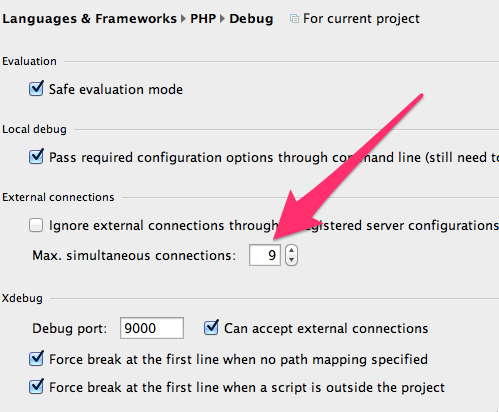
Max. Simultaneous Connections

When debugging automated tests using the run-tests.sh script, it is crucial that PhpStorm's "Max Simultaneous Connections" for PHP Debugging is set to a sufficiently large value. "9" works for me.
Max. Simultaneous Connections

Setting up a deployment server

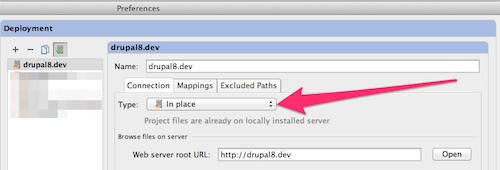
Configuring a deployment server is one of the key things you need to do in order to debug in PhpStorm. While PhpStorm supports remote debugging, for my situation, the "In place" deployment type was sufficient.
Deployment server type: In place
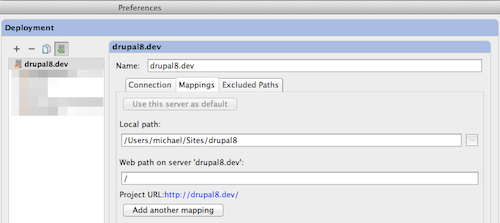
The deployment server mappings were left at their default values:
Deployment server mappings

Troubleshooting

At this point, you should be able to enable the PhpStorm debugging listener, go into your browser, turn debugging on (either via a browser extension or bookmarklet
and happily debug away. If it doesn't work, here are a couple of things you can take a look at:
  1. Case-senstitivity in paths - on my machine, the path to my "Sites" directory is "/Users/michael/Sites". I had an issue where breakpoints weren't working that I tracked down to a lower case "s" in "Sites" that I mistakenly set up in my Apahce virtual host for the site ("/Users/michael/sites" instead of "/Users/michael/Sites").
  2. xdebug version - some versions of xdebug are better than others. Several months ago I had an issue with xdebug not working properly when debugging from the commandline (Drush). I tracked it down to an old, buggy version of xdebug. I updated xdebug and all was well.
  3. Some people use PhpStorm "configurations" to configure debugging, while this works fine, it isn't necessary. I have zero "configurations" configured on my machine.
  4. Debugging from Drush - be sure to set your PHP_ID_CONFIG value to same value as your PhpStorm project "server". 
  5. Do you use Acquia Dev Desktop? 

Drupal 8 paths inconsistencies

While Drupal 8 has plenty of things to be excited about, there are a few "gotchas" that site-builders need to be aware of as they build out sites. I found the first thing that I had trouble with was the way that Drupal 8 isn't very consistent (yet?) with the way it handles paths. In Drupal 7 and before, anytime you needed to enter a path, it (almost?) never started with a leading "/". For example, need to add an new alias for a node? You would enter "my-new-node", not "/my-new-node".
With Drupal 8, a leading slash is required for path aliases. Unfortunately, leading slashes are not required everywhere. For example, in Drupal 8 page displays in Views do not require a leading slash. Neither do contact form post-submit redirects (they actually require something like "entity:node/743"!) But, block visibility settings require the leading slash. In most cases, the help text indicates when the leading slash is necessary, so it helps to pay attention!

X Marks the Spot: A Beginner's Guide to Online Maps in Drupal

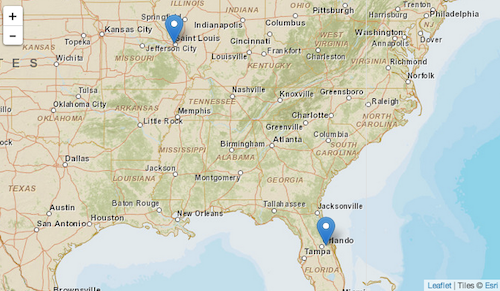
X Marks the Spot sample map
Mapping address data in Drupal can be confusing, if only because of the great number of contributed modules available that involve online maps. Picking the right module (or combination of modules) is challenging - especially for site builders who are new to mapping in Drupal. In this tutorial, we'll utilize the popular and well-supported Geofield module as one of the key ingredients in the common task of entering address data and having it displayed on an interactive map.
This tutorial contains step-by-step instructions for accomplishing this task, as well as a screencast demonstrating all of the steps.
We'll use the example of adding DrupalCamp address information to a Drupal 7 site. The site will then automatically display the DrupalCamp on a map on each camp's page, as well as display all camps on a single map. Finally, we're going to look at some of the options for using different map base layers.
This tutorial assumes that you're familiar with Drupal's "big 5" (content types, taxonomy, menus, users/roles/permissions, and blocks/regions/themes), the Views module, as well as downloading, installing, and enabling modules.
Here are the basic steps of what we'll be doing:
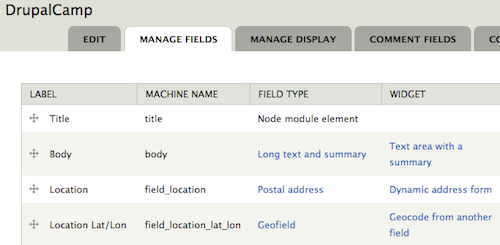
  1. Create a new DrupalCamp content type with a standard (postal) address field.
  2. Add a (Geofield) field to the DrupalCamp content type to store each address's corresponding latitude and longitude. The Geocoder module will be used to convert the postal address into latitude and longitude values.
  3. Configure the DrupalCamp content type so that a the latitude and longitude field are displayed as a map.
  4. Create a view that displays all DrupalCamp nodes' address information on a single map.
  5. Check out the various options for changing the look of the maps.

Screencast

Create a new "DrupalCamp" Content Type

We're going to use the Address Field module (which requires the Chaos tools module) to allow users to easliy input postal address information for each camp. Once the module is enabled, create a new "DrupalCamp" content type and add a new field of type "Postal address" (provided by the Address Field module). Give it a label of "Location", and set its configuration as follows (anything not listed can be left at default values):
  • Available countries: United States
  • Format handlers: Address form (country-specific) and Name
DrupalCamp content type

Provide a Field to Store Latitude and Longitude

The Geofield module is used to store geographic data in Drupal 7. It can store points, lines, and polygons, but for this example, we'll just be storing individual points (locations) - luckily, this is the easiest (and most common) scenario. The Geofield module also requires the Chaos tools module as well as the geoPHP module.
The Geofield module also comes with the Geofield Map module, which we'll be using later in this tutorial.
Before we go ahead and add a new Geofield field type field to our DrupalCamp content type, we're going to want to go ahead and also enable the Geocoder module. This is because the Geocoder module provides a widget for the Geofield field type that we're going to use. The Geocoder module also requires the Chaos tools and geoPHP modules.
Now that we have all the required modules enabled, let's go ahead and add a new field to our DrupalCamp content type. Give it a label of "Location lat/lon", use a field type of "Geofield", and set its widget to "Geocode from another field" (this is where the Geocoder module comes in). Settings for the field are (anything not listed can be left at default values):
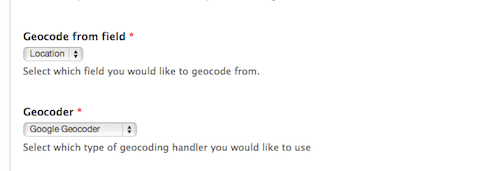
  • Geocode from field: Location
  • Geocoder: Google Geocoder
DrupalCamp Location Lat/Lon field settings
These two field settings are the key for automatically converting postal address data entered in the "Location" field into latitude/longitude data stored in the "Location lat/lon" field. The settings instruct the Geocoder module to grab the postal address data and send it to the Google Geocoder web service which does the heavy lifting of converting it to a latitude and longitude. Other geocoding services are available, but each one provides different capabilities and different usage limits. For Google Geocoder:
Note: you'll need to have an active internet connection for the Geocoding to work.
Feel free to add other fields to the DrupalCamp content type at your lesiure, but for this tutorial, this is all that we're going to need.

Display a Map for Each DrupalCamp Node

At this point, we're ready to add some DrupalCamp nodes. Find some DrupalCamps to enter - be sure to enter complete location information for each.
You'll notice that as each one is added the "Location lat/lon" field displays something like "POINT (-90.3288385 38.6491536)". Navigate on over to the "Manage Display" settings for the DrupalCamp content type and notice that the formatter for the field is set to "Well Known Text (WKT)". According to Wikipedia:
Well Known Text (WKT) is a text markup language for representing vector geometry objects on a map, spatial reference systems of spatial objects and transformations between spatial reference systems.
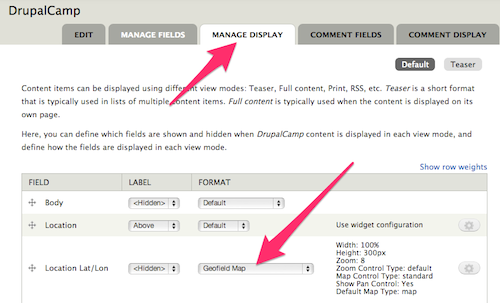
While useful, it doesn't really provide site visitors with what they're looking for. By enabling the Geofield Map module (which comes with Geofield), we can now utilize the "Geofield Map" formatter on the "Location lat/lon" field (via the "Manage Display" page of our DrupalCamp content type). Select this, then set the formatter's settings as follows (anything not listed can be left at default values):
  • Zoom: 15
DrupalCamp content type Manage Display settings
Now, go back and take a look at one of your DrupalCamp nodes; instead of the Well Known Text data, you should see a Google Map with a pin at the location of the DrupalCamp. Note that this is a fully-enabled Google Map that you can pan, zoom, and do most anything else you do with any other Google Map.
Note: you'll need to have an active internet connection for the map to display.

View All DrupalCamps on a Single Map

The ability to view numerous DrupalCamps on a single map is the next logical step. The Views module provides the ability to display lists of content. In this case, our content is DrupalCamp, and instead of a traditional "list", we're going to output our view as a map.
Let's create a new view called "All DrupalCamps". Give it a single page display with a path of "all-drupalcamps" and filter it by:
  • Content: Published = Yes
  • Content: Type = DrupalCamp
For fields, we'll keep it simple:
  • Content: Title
  • Content: Location lat/lon
In the "Content: Location lat/lon" settings, click to "Exclude it from display" and leave other settings at their default values.
We want to be sure that we display all the DrupalCamp nodes on a single map, so modify the Pager settings as well:
  • Pager: Display all items
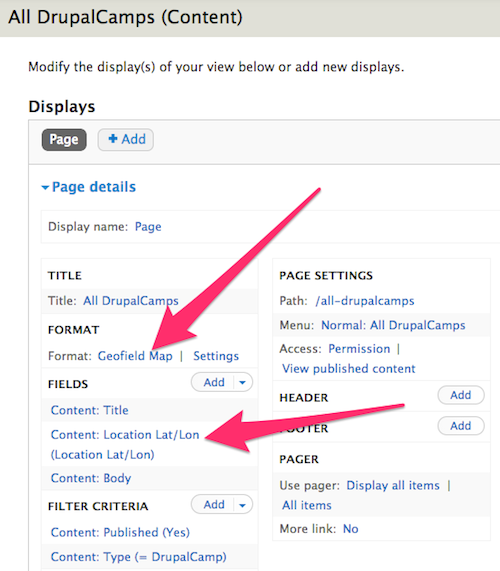
All that is left at this point is to set the Format of the display. Click on "Unformatted text" in the Format settings, and change the format to "Geofield Map". For its settings use the following (anything not listed can be left at default values):
  • Data Source: Location lat/lon
  • Popup Text: title
The "Data Source" setting tells the Geofield Map formatter where to look for the latitude and longitude data. In this case, the Geofield-based "Location lat/lon" field that we included in our list of fields for this view. The "Popup Text" setting instructs Geofield Map to use the title field as the text to display when the camp's pin is clicked.
DrupalCamp All DrupalCamps view
Navigate to the "all-drupalcamps" page on your site and you should see a Google Map with a pin displayed for each DrupalCamp node on your site.

Alternative Map Styles

While the Geofield Map module outputs only Google Maps, the Leaflet module provides a number of alternative "base layers" that can give your map various looks. While the Leaflet module does a lot more than just provide alternate base layers, we'll only be looking at this functionality in this tutorial.
The Leaflet module requires the Libraries module, the Entity API module, as well as the 3rd-party Leaflet JS library. Be sure to read the installation instructions to make sure everything is installed properly.
The Leaflet module comes with several modules. For this tutorial, we'll need to enable the "Leaflet", "Leaflet More Maps", and "Leaflet views". modules.
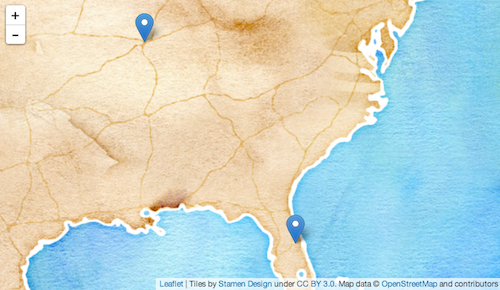
Once everything is enabled, navigate back to the edit page for the "All DrupalCamps" view. Click to change the Format from "Geofield Map" to "Leaflet Map". Set the format settings as follows (anything not listed can be left at default values):
  • Data Source: Content: Location lat/lon
  • Title Field: Content: Title
  • Map: pick one!
Leaflet map
The "Map" setting provides numerous different options for various base layers for your map. Depending on the type of content and/or the style of the site, one base layer may be more appropriate than another. There are a good number of other options in the "Leaflet Map" settings, including the ability to use custom "points" (or "pins") and vector display options (for when the map is displaying more than just points). There's also a "Descriptive Content" field that can be used to display additional content about the DrupalCamp when the pin is clicked. This is commonly populated with a trimmed version of the body field of the node.

Wrap-up

Over the years, there have been lots of ways for displaying interactive maps on a Drupal site. Each iteration provides more features and easier setup and configuration. What this tutorial covered is just scratching the surface of what can be done. There are numerous Geofield- and Leaflet-related modules that extend the functionality of the basics presented here, be sure to check them out!

What’s new on Drupal.org? - January 2016

Following the Conversation

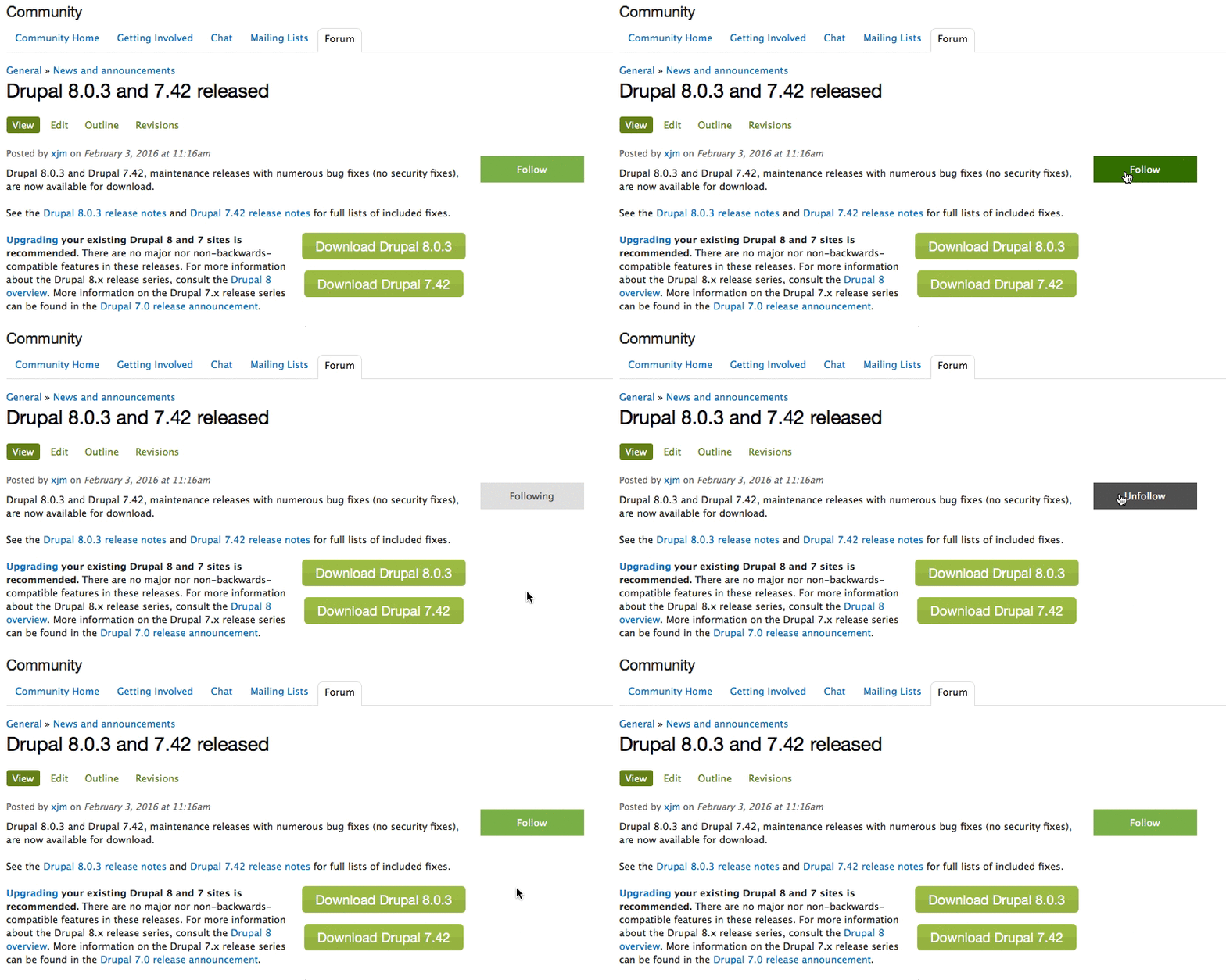
One of the most requested features from a wide swath of the community has been a better way to follow content on Drupal.org and receive email notifications. The issue queues have had this follow functionality for some time, but the implementation was quite specific to issues, and not easily extensible to the rest of the site.

Because of the volume of content on Drupal.org we have to be careful that our implementation will scale well. We now use a notification system based on the Message stack which functions much more generically and therefore can be applied to many content types on Drupal.org.
Follow functionality is now available for comments on Forum topics, Posts (like this one), Case Studies, and documentation Book Pages.
In the future we intend to extend this follow functionality to include notification of new revisions (for relevant content types, particularly documentation).

Community Elections for the Board


Nominations for the position of At-Large Director from the community are now open. There are two of these positions on the board, each elected on alternating years. For this year's elections process we've made several small refinements:
  • Candidates are now no longer required to display their real names on their candidate profile. We will now default to the Drupal.org username.
  • Candidates do not have to provide a photo, we will default to a generic avatar.
  • There is now an elections landing page with complete details about the elections process.
We encourage members of the community to nominate themselves!

Drupal.org Enhancements


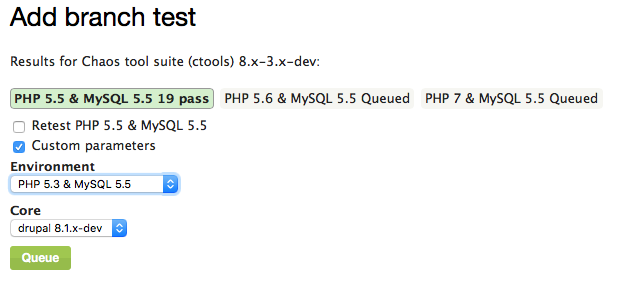
A number of smaller enhancements made it into the January sprints as well. One of the key ones was the ability to configure an arbitrary one-off test in the issue queues against a custom branch. This is a small step towards ensuring that the DrupalCI testing framework will support the wider testing matrix required for feature branching, so that Drupal can always be shippable.
We also spent some time in January reviewing the results of the documentation survey that was placed on all existing documentation pages on the site. This information is helping to inform the next big item on the roadmap - improved Documentation section on Drupal.org.
Finally, we've continued our battle against spam with the help of Technology Supporter, Distil Networks. We've seen some very promising results in initial trials to prevent spam account registrations from happening in the first place, and will continue to work on refining our integration.

Sustaining support and maintenance


DrupalCon New Orleans Full -Site Launched!

In January we also launched the full -site for DrupalCon New Orleans with registration and the call for papers. As part of this launch, Events.drupal.org now supports multiple, simultaneous event registrations with multiple currencies, payment processors, and invoice formats. This was a significant engineering lift, but has made Events.drupal.org even more robust.
DrupalCon New Orleans is happening from May 9-13th, and will be the first North American DrupalCon after the release of Drupal 8!

DrupalCon Dublin


The next European DrupalCon will also be here before you know it, and we've been working with the local community and our designer to update the DrupalCon Dublin splash page with a new logo that we will carry through into the design for the full-site once that is ready to launch.

Permissions for Elevated Users

In January we also focused on auditing the users with elevated privileges on Drupal.org, both to ensure that they had the permissions they needed, and to enforce our principle of least-access. Users at various levels of elevated privileges were contacted to see if they were still needed, and if not those privileged roles were removed.
The following privileges were also fixed or updated: webmasters can now view a user's' public ssh keys; content moderators can administer comments and block spam users without user profile editing privileges. We also fixed taxonomy vocabulary access and now both content moderators and webmasters have access to edit tags in various vocabularies such as Issue tags, giving more community members access to clean those up and fight duplicates or unused tags.

Updates traffic now redirects to HTTPS

SSL is now the default for FTP traffic from Drupal.org and for Updates.drupal.org itself. This helps to enforce a best practice of using SSL wherever possible, and helps to address an oblique attack surface where a man-in-the-middle could potentially hijack an update for someone running their Drupal installation on an unprotected network (i.e. development environments on a personal laptop in a coffee shop).

Devwww2 Recovery

Drupal.org pre-production environments were affected by some instability in January, particulary the devwww2 server. A combination of a hard restart due to losing a NIC on the machine and some file-system level optimizations in the database containers lead to corruption on the dev site databases. Drupal.org infrastructure engineers restored the system and recovered the critical dev sites, and while some instability continues the system has been recovering more cleanly as they work to resolve the issue permanently.

Friday, November 6, 2015

Building Custom cTools Plugins in Drupal 7

cTools is one of those critical Drupal 7 modules many others depend on. It provides a lot of APIs and functionality that makes life easier when developing modules. Views and Panels are just two examples of such powerhouses that depend on it.
cTools makes available different kinds of functionality. Object caching, configuration exportability, form wizards, dialogs and plugins are but a few. A lot of the credit you would normally attribute to Views or Panels is actually owed to cTools.
Drupal logo
In this article, we are going to take a look at cTools plugins, especially how we can create our very own. After a brief introduction, we will immediately go hands on with a custom module that will use the cTools plugins to make defining Drupal blocks nicer (more in tune to how we define them in Drupal 8).

Introduction

cTools plugins in Drupal 7 (conceptually not so dissimilar to the plugin system in Drupal 8) are meant for easily defining reusable bits of functionality. That is to say, for the ability to define isolated business logic that is used in some context. The goal is to set up that context and plugin type once, and allow other modules to then define plugins that can be used in that context automatically.
If you’ve been developing Drupal sites for more than a year you’ve probably encountered cTools plugins in one shape or form. I think the first plugin type we usually deal with is the content_type plugin which allows us to create our own custom panel panes that display dynamic content. And that is awesome. Some of the others you may have encountered in the same realm of Panels are probably context and access (visibility rules). Maybe even relationships and arguments. These are all provided by cTools. Panels adds to this list by introducing layouts and styles that we normally use for creating Panels layouts and individual pane styles. These are I think the more common ones.
However, all of the above are to a certain extent a black box to many. All we know is that we need to define a hook to specify a directory and then provide an include file with some definition and logic code and the rest happens by magic. Going forward, I would like us to look into how a plugin type is defined so that if the case arises, we can create our own plugins to represent some reusable bits of functionality. To demonstrate this, we will create a module that turns the pesky hook system of defining custom Drupal blocks into a plugin based approach similar to what Drupal 8 is using.
The final code (+ a bit more) can be found in this repository if you want to follow along. And I do expect you are familiar with the steps necessary for defining custom Drupal blocks.

The block_plugin module

As I mentioned, I would like to illustrate the power of cTools plugins with a custom plugin type that makes defining Drupal 7 blocks saner. Instead of implementing the 2 main hooks (hook_block_info() and hook_block_view()) necessary to define a block, we’ll be able to have separate plugin files each responsible for all the logic related to their own block. No more switch cases and changing the hook implementation every time we need a new block. So how do we do this?
First, let’s create our block_plugin.info file to get started with our module:
name = Block Plugin
description = Using cTools plugins to define Drupal core blocks
core = 7.x
dependencies[] = ctools
Simple enough.

The plugin type

In order to define our news plugin type, inside the block_plugin.module file we need to implement hook_ctools_plugin_type() which is responsible for defining new plugin types cTools will recognize:
function block_plugin_ctools_plugin_type() {
  return array(
    'block' => array(
      'label' => 'Block',
      'use hooks' => FALSE,
      'process' => 'block_plugin_process_plugin'
    )
  );
}
In this hook we need to return an associative array of all the plugin type definitions we need keyed by the machine name of the plugin type name. Today we are only creating one called block. For more information on all the options available here, feel free to consult the plugins-creating.html help file within the cTools module. No use repeating all that information here.
The process key defines a function name that gets triggered every time cTools loads for us a plugin and is responsible for shaping or massaging the plugin data before we use it. It’s sort of a helper function that prepares the plugin for us each time so we don’t have to bother. So let’s see what we can do inside that function:
function block_plugin_process_plugin(&$plugin, $info) {
  // Add a block admin title
  if (!isset($plugin['admin title'])) {
    $exploded = explode('_', $plugin['name']);
    $name = '';
    foreach ($exploded as $part) {
      $name .= ucfirst($part) . ' ';
    }
    $plugin['admin title'] = $name;
  }

  // By default we also show a block title but this can be overwritten
  if (!isset($plugin['show title'])) {
    $plugin['show title'] = TRUE;
  }

  // Add a block view function
  if (!isset($plugin['view'])) {
    $plugin['view'] = $plugin['module'] . '_' . $plugin['name'] . '_view';
  }

  // Add a block form function
  if (!isset($plugin['configure'])) {
    $plugin['configure'] = $plugin['module'] . '_' . $plugin['name'] . '_configure';
  }

  // Add a block save function
  if (!isset($plugin['save'])) {
    $plugin['save'] = $plugin['module'] . '_' . $plugin['name'] . '_save';
  }
}
This callback receives the plugin array as a reference and some information about the plugin type. The task at hand is to either change or add data to the plugin dynamically. So what do we achieve above?
First, if the developer hasn’t defined an admin title for the block plugin, we generate one automatically based on the machine name of the plugin. This is so that we always have an admin title in the Drupal block interface.
Second, we choose to always display the title of the block so we mark the show title key of the plugin array as TRUE. When defining the block plugin, the developer has the option of setting this to FALSE in which case we won’t show a block title (subject).
Third, fourth and fifth, we generate a callback function for the block view, save and configure actions (if they haven’t already been set by the developer for a given plugin). These callbacks will be used when implementing hook_block_view(), hook_block_configure() and hook_block_save(), respectively. We won’t be covering the latter two in this article but feel free to check out the repository to see what these can look like.
And that’s pretty much all we need for defining our custom plugin type. We should, however, also implement hook_ctools_plugin_directory() which, as you may know, is responsible for telling cTools where a plugin of a certain type can be found in the current module:
function block_plugin_ctools_plugin_directory($module, $plugin) {
  if ($module == 'block_plugin' && in_array($plugin, array_keys(block_plugin_ctools_plugin_type())) ) {
    return 'plugins/' . $plugin;
  }
}
This will need to be implemented also by any other module that wants to define block plugins.

Drupal blocks

Now that we have the plugin type, let’s write the code which turns any defined block plugin into a Drupal block. Will start with the hook_block_info() implementation:
function block_plugin_block_info() {
  $blocks = array();

  $plugins = block_plugin_get_all_plugins();
  foreach ($plugins as $plugin) {
    $blocks[DELTA_PREFIX . $plugin['name']] = array(
      'info' => $plugin['admin title'],
    );
  }

  return $blocks;
}
Here we load all of the plugins using a helper function and define the minimum required information for the block. Here you can add also more information but we are keeping it simple for brevity.
We know each plugin will have a machine name (the name of the include file basically) and an admin title because we generate one in the processing phase if one doesn’t exist. The DELTA_PREFIX is a simple constant in which we define the prefix we want for the block machine name because we need to reuse it and should be able to easily change it if we want to:
define('DELTA_PREFIX', 'block_plugin_');
Our helper function we saw earlier looks like this:
function block_plugin_get_all_plugins() {
  return ctools_get_plugins('block_plugin', 'block');
}
It’s a simple wrapper around the respective cTools function. And for that matter, we also have the following function responsible for loading a single plugin by its machine name:
function block_plugin_get_plugin($name) {
  return ctools_get_plugins('block_plugin', 'block', $name);
}
This is very similar to the one before.
In order to make our Drupal block definitions complete, we need to implement hook_block_view():
function block_plugin_block_view($delta = '') {
  $plugin = block_plugin_plugin_from_delta($delta);
  if (!$plugin) {
    return;
  }

  $block = array();

  // Optional title
  if (isset($plugin['title']) && $plugin['show title'] !== FALSE) {
    $block['subject'] = $plugin['title'];
  }

  // Block content
  $block['content'] = $plugin['view']($delta);

  return $block;
}
So what’s happening here?
First, we use another helper function to try to load a plugin based on the delta of the current block and do nothing if we are not dealing with a plugin block.
Second, we build the block. If the user specified a title key on the plugin and the show title key is not false, we set the subject of the block (its title basically) as the former’s value. As for the actual block content, we simply call the view callback defined in the plugin. And that’s it.
Let us quickly see also the helper function responsible for loading a plugin based on a block delta:
function block_plugin_plugin_from_delta($delta) {
  $prefix_length = strlen(DELTA_PREFIX);
  $name = substr($delta, $prefix_length);
  $plugin = block_plugin_get_plugin($name);
  return $plugin ? $plugin : FALSE;
}
Nothing complicated going on here.

Defining block plugins

Since we told cTools that it can find block plugins inside the plugins/block folder of our module, let’s go ahead and create that folder. In it, we can add our first block inside a file with the .inc extension, for example my_block.inc:
<?php

$plugin = array(
  'title' => t('This is my block'),
);

/**
 * Returns a renderable array that represents the block content
 */
function block_plugin_my_block_view($delta) {
  return array(
    '#type' => 'markup',
    '#markup' => 'Yo block!'
  );
}
Like we do with all other plugins (content_type, context, etc), the plugin definition is in the form of an array inside a variable called $plugin. And for our case all we need at this point is a title (and not even that since without it the block simply won’t show a title).
Below it, we defined our callback function to display the block. The naming of this function is important. It matches the pattern we used for it during the processing phase (module_name_plugin_name_view). If we want to name it differently, all we have to do is reference the function name in the view key of the $plugin and it will use that one instead.
And that is basically it. We can now clear our caches and go to the Block administration screen where we can find our block and add it to a region. Showing that block on the page should trigger the view callback for that block plugin and render the contents.

Custom Display Suite Fields in Drupal 8

Without question, Display Suite is one of the most popular modules in Drupal’s contributed modules history. It allows the creation of layouts, fields and exposes all sorts of other powerful tools we use to build the presentation layer of our Drupal sites.
Drupal 8 logo
One of the more powerful features of Display Suite (DS) is the ability to create custom fields that can be displayed inside DS layouts alongside the actual core field values. In Drupal 7, this has been a very popular way of building layouts and showing dynamic data that is not strictly related to the output of any Field API field on the node (or other) entity.
Display Suite has been ported and is being maintained for Drupal 8. Depending on another contributed module called Layout Plugin, the D8 version offers much of what we have available in Drupal 7 and probably even more.
In this article, we are going to look at how we can create our own Display Suite field in Drupal 8 using the new OOP architecture and plugin system. To demonstrate this, we are going to create a DS field available only on the Article nodes that can be used to display a list of taxonomy terms from a certain vocabulary. And we’re going to make it so that the latter can be configured from the UI, namely admins will be able to specify which vocabulary’s terms should be listed. Not much usefulness in this example, I know, but it will allow you to understand how things work.
If you are following along, the code we write is available in this repository inside the Demo module. So feel free to check that out.

Drupal 8 plugins

Much of the functionality that used to be declared using an _info hook in Drupal 7 is now declared using plugins in Drupal 8. For more information on using plugins and creating your own plugin types, make sure you check out a previous Sitepoint article that talks about just that.
Display Suite also uses the new plugin system to allow other modules to define DS fields. It exposes a DsField plugin type which allows us to write and maintain all the necessary logic for such a field inside a single plugin class (+ any services we might inject into it). So we no longer implement hook_ds_field_info() and return an array of field information per entity type, but create a plugin class with data straight in its annotation and the relevant logic inside its methods.

VocabularyTerms class

Let us start by creating our plugin class called VocabularyTerms inside the src/plugins/DsField folder of our custom module and annotating it for our purposes:
namespace Drupal\demo\Plugin\DsField;

use Drupal\ds\Plugin\DsField\DsFieldBase;

/**
 * Plugin that renders the terms from a chosen taxonomy vocabulary.
 *
 * @DsField(
 *   id = "vocabulary_terms",
 *   title = @Translation("Vocabulary Terms"),
 *   entity_type = "node",
 *   provider = "demo",
 *   ui_limit = {"article|*"}
 * )
 */
class VocabularyTerms extends DsFieldBase {
}
This class alone will hold all of our logic for our very simple DsField plugin. But here are a couple of remarks about what we have so far:
  • The annotation is quite self explanatory: it provides meta information about the plugin.
  • The class extends DsFieldBase which provides base functionality for all the plugins of this type.
  • At the time of writing, the ui_limit annotation has just been committed to HEAD so it might not be available in the release you are using. Limiting the availability of the field on content types and view modes can be done by overriding the isAllowed() method of the base class and performing the logic there.

Default configuration

We want our field to be configurable: the ability to select from a list of existing vocabularies. So let’s start off by providing some defaults to this configuration so that if the user selects nothing, the Tags vocabulary which comes with core will be used. For this, we have to implement the defaultConfiguration() method:
/**
 * {@inheritdoc}
 */
public function defaultConfiguration() {

  $configuration = array(
    'vocabulary' => 'tags',
  );

  return $configuration;
}
And since we only have one configuration option, we return an array with one element keyed by the configuration name. That’s about it.

Formatters

We also want to have the ability to specify from the UI if the list of taxonomy terms is a series of links to their term pages or formatter as plain text. We could implement this within the configuration realm but let’s do so using formatters instead. And it’s very simple: we implement the formatters() method and return an array of available formatters:
/**
 * {@inheritdoc}
 */
public function formatters() {
  return array('linked' => 'Linked', 'unlinked' => 'Unlinked');
}
DS Field Formatter Options
These will be available for selection in the UI under the Field heading of the Manage Display page of the content type. And we’ll be able to see the choice when we are building the actual field for display. But more on that in a second.

Configuration summary

It’s also recommended that if we are using UI defined settings, we have a summary of what has been selected as a simple string that describes it. This gets printed under the Widget heading of the Manage Display page of the content type.
DS Configuration Summary
To do this, we need to implement the settingsSummary() method and return said text:
/**
 * {@inheritdoc}
 */
public function settingsSummary($settings) {
  $config = $this->getConfiguration();
  $no_selection = array('No vocabulary selected.');

  if (isset($config['vocabulary']) && $config['vocabulary']) {
    $vocabulary = Vocabulary::load($config['vocabulary']);
    return $vocabulary ? array('Vocabulary: ' . $vocabulary->label()) : $no_selection;
  }

  return $no_selection;
}
Here we start getting more intimate with the actual configuration that was stored with the field, available by calling the getConfiguration() method on our plugin class. What we do above, then, is check if the vocabulary setting has been set, we load it based on its machine name using the Vocabulary class and return an array of strings that need to be printed.
Since we are referencing the Vocabulary class, we also need to use it at the top:
use Drupal\taxonomy\Entity\Vocabulary;
Important to note: I am using Vocabulary statically here to load an entity for the sake of brevity. It is highly recommended you inject the relevant storage using dependency injection and use that to load entities. The same goes for most classes you’ll see me referencing statically below.

Settings form

Now that we display which configuration has been chosen from the UI, it’s time to provide the actual form which will allow the user to do so. This will be made available by clicking the cogwheel under the Operations heading of the Manage Display page of the content type.
DS Field Settings Form
/**
 * {@inheritdoc}
 */
public function settingsForm($form, FormStateInterface $form_state) {
  $config = $this->getConfiguration();

  $names = taxonomy_vocabulary_get_names();
  $vocabularies = Vocabulary::loadMultiple($names); 
  $options = array();
  foreach ($vocabularies as $vocabulary) {
    $options[$vocabulary->id()] = $vocabulary->label();
  }
  $settings['vocabulary'] = array(
    '#type' => 'select',
    '#title' => t('Vocabulary'),
    '#default_value' => $config['vocabulary'],
    '#options' => $options,
  );

  return $settings;
}
Like before, we need to implement a method for this. And what we do inside is load all the taxonomy vocabulary names and prepare an array of options to be used with a Form API select list. The latter is the only element we need for this form.

Rendering the field

The last thing left to do is implement the build() method responsible for rendering the contents of our field:
/**
 * {@inheritdoc}
 */
public function build() {
  $config = $this->getConfiguration();
  if (!isset($config['vocabulary']) || !$config['vocabulary']) {
    return;
  }

  $query = \Drupal::entityQuery('taxonomy_term')
    ->condition('vid', $config['vocabulary']);

  $tids = $query->execute();
  if (!$tids) {
    return;
  }

  $terms = Term::loadMultiple($tids);
  if (!$terms) {
    return;
   }

  return array(
    '#theme' => 'item_list',
    '#items' => $this->buildTermList($terms),
  );
}
So what do we do here? First, we access the chosen vocabulary from the configuration. Then we run an EntityQuery to find all the terms in this vocabulary. Next, we load all these terms and finally we return a render array that uses the item_list theme to print our terms.
Although we don’t need it here, in most cases you’ll need to access the node entity that is currently being rendered. That is available inside the configuration array under the entity key. Moreover, under the build key you have the actual render array of the node being built. So keep this in mind and do inspect the other elements of the configuration array on your own for more information.
I would like to mention a few more things before we take a look at the actual buildTermList() method. First, for brevity, we used the EntityQuery service statically. In your project, you should inject it. Second, we used the Term class statically to load the taxonomy term entities. Again, you should inject its storage and use that for this purpose. And lastly, we should import the Term class at the top with use:
use Drupal\taxonomy\Entity\Term;
Now that this is clear, let’s take a look at our own buildTermList() method:
private function buildTermList(array $terms) {
  $config = $this->getConfiguration();
  $formatter = isset($config['field']['formatter']) && $config['field']['formatter'] ? $config['field']['formatter'] : 'unlinked';
  $items = array();
  foreach ($terms as $term) {
    $items[] = $this->buildTermListItem($term, $formatter);
  }

  return $items;
}
This method is responsible for getting the field formatter, looping through the term entities and building an array of term information that can be printed using the item_list theme. As you can see, though, the individual term entity and formatter are passed to yet another helper method to keep things nice and tidy:
private function buildTermListItem(Term $term, $formatter) {
  if ($formatter === 'linked') {
    $link_url = Url::fromRoute('entity.taxonomy_term.canonical', array('taxonomy_term' => $term->id()));
    return \Drupal::l($term->label(), $link_url);
  }

  return SafeMarkup::checkPlain($term->label());
}
Finally, in the buildTermListItem() method we either return the sanitized title of the term or a link to it depending on the formatter.
Again we see classes which should be injected but were used statically to save some space. With the risk of sounding like a broken record, keep in mind that you should inject these. For now, we must use them at the top:
use Drupal\Core\Url;
use Drupal\Component\Utility\SafeMarkup;